Pick your photos.
Select one image or a batch of up to 20. Shrink accepts JPEG, HEIC, and PNG photos.
That “file too large” moment? Solved.
Pick your photos. Set a size limit. Shrink makes them ready for your next upload.
3 free exports. One-time unlock. Zero subscriptions.
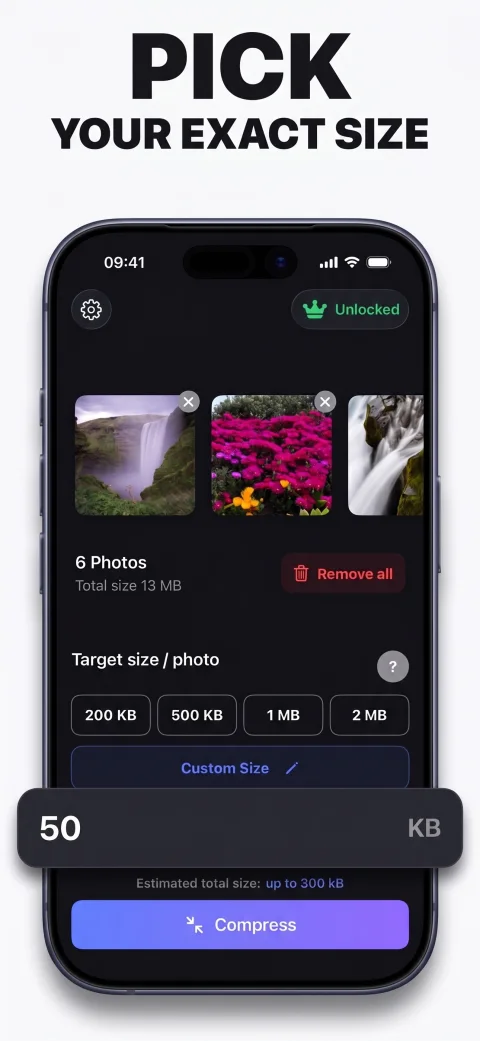
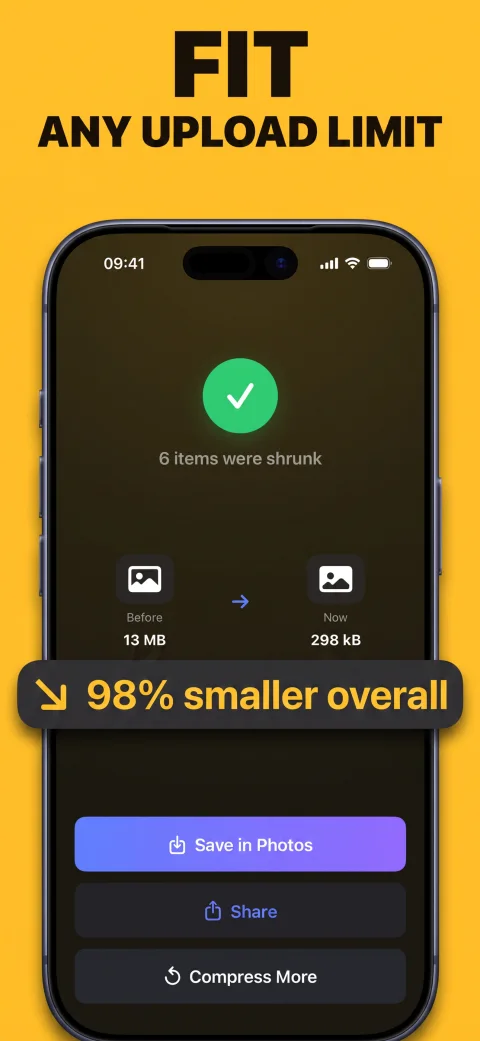
Real App Store screenshots. Example results vary by photo.
A form asks for 500 KB. You choose 500 KB. Shrink balances quality and dimensions to fit your maximum, then shows you the result.
A maximum for each photo. A smaller result is OK.
Need a custom size? ↗Choose a limit, compress your photos, and get back to what you were doing.
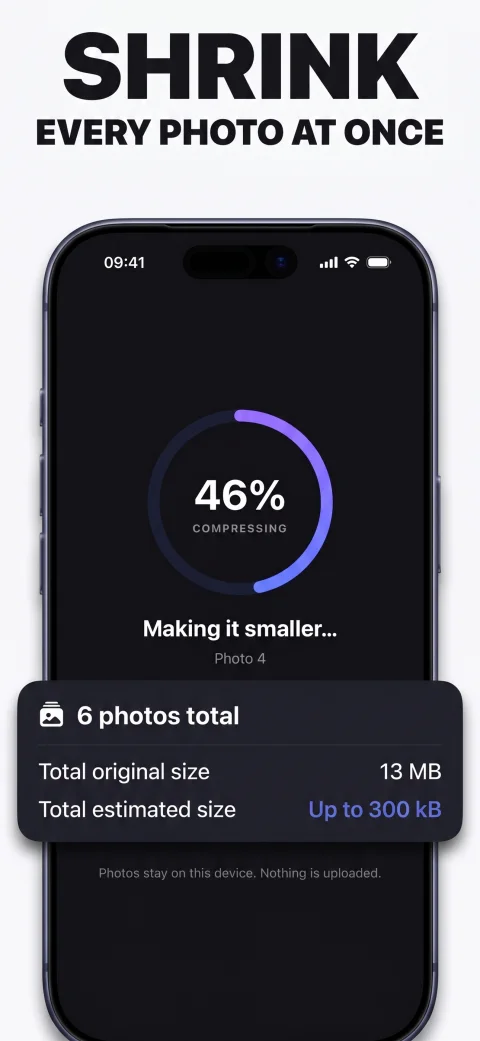
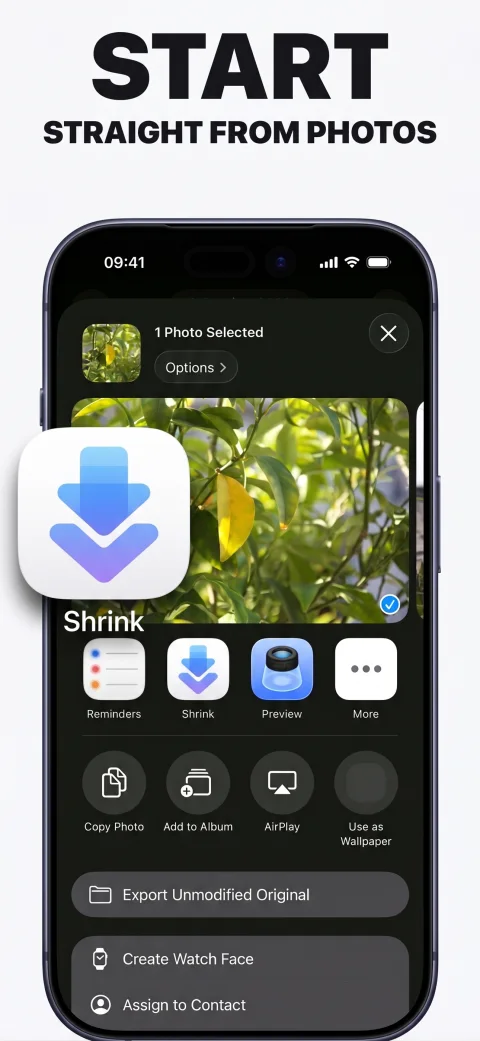
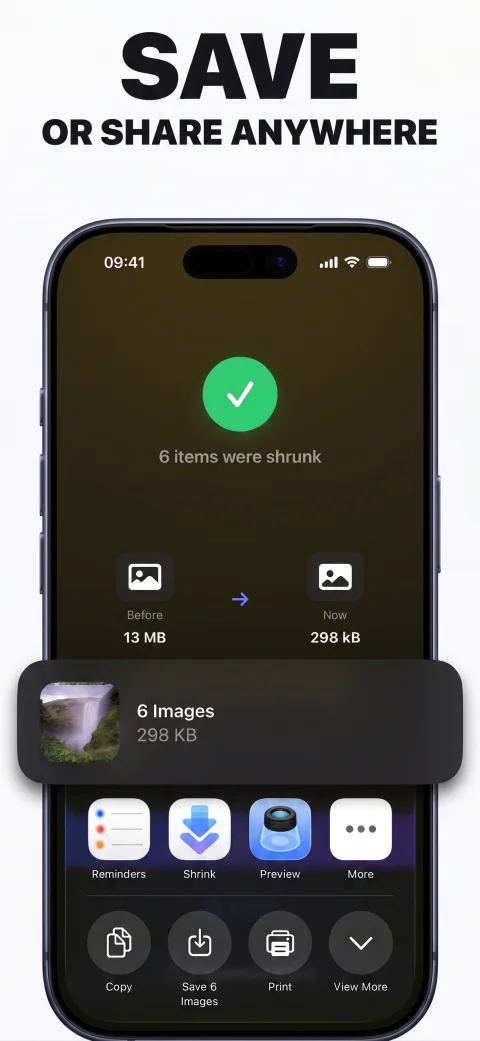
Screenshots from the App Store listing. Compression results depend on the original photo and selected limit.
No quality sliders to keep adjusting. Just tell Shrink how small the file needs to be.
Select one image or a batch of up to 20. Shrink accepts JPEG, HEIC, and PNG photos.
Choose 200 KB, 500 KB, 1 MB, 2 MB, or enter a custom size. The maximum applies to each photo.
Check the before and after. Save to your Shrink album in Photos, or share straight to another app.
Already in Photos? Open the Share sheet and choose Shrink to start right there.
See the shortcut ↗Compression runs on your device. No photo uploads, no account to create. Work offline with locally available images.
How on-device compression works ↗Choose the largest limit your upload allows. Already-small photos stay unchanged, so nothing is compressed unnecessarily.
Understand size and quality ↗Practical guides for upload limits, lighter attachments, and the occasional stubborn form.
Compress a photo to a 200 KB maximum on iPhone.
Read the guide 500 KB · Forms & listingsMake an iPhone photo fit a 500 KB upload limit with Shrink.
Read the guide 1 MB & 2 MB · Larger uploadsReduce an iPhone photo to a 1 MB maximum, or use the 2 MB preset when more detail is allowed.
Read the guide Batch · Up to 20 photosBatch compress up to 20 iPhone photos to a chosen per-image size with Shrink.
Read the guide Troubleshooting · Upload errorsFix an iPhone photo upload error by checking file size, format, dimensions, and the selected copy.
Read the guide Email · Smaller attachmentsMake iPhone photos smaller for email with Shrink.
Read the guideNew to compression? Start with our iPhone photo-size guide ↗
Everything else you might want to know before your first export.
Choose your photos in Shrink, set a maximum size, then tap Compress. Review the result and save or share the smaller copy.
Learn More ↗
Yes. Both sizes are built-in presets. Each sets a maximum per photo; the final file can be smaller. Check any separate format or dimension requirements before uploading.
Learn More ↗
Select the 1 MB preset and compress. For a different limit, use 2 MB or Custom Size. A strict upload boundary may need a little margin below the stated limit.
Learn More ↗
Yes, up to 20 photos per batch. Your chosen maximum applies to every photo individually, so the combined batch can exceed that size.
Learn More ↗
It can. Shrink adjusts quality and, when needed, dimensions to fit your limit. Use the largest permitted target and review important detail. Photos already below the target are left unchanged.
Learn More ↗
No. Photo compression happens on your iPhone. Locally available photos can be compressed offline. Purchases and restoring access may require a connection.
Learn More ↗
The form may also require a particular format, dimensions, or a combined size limit. Confirm you selected the exported copy, then check the full upload requirements.
Learn More ↗
Your first three exports are free. A one-time purchase unlocks unlimited compression, with no subscription and no ads. Requires iPhone with iOS 26 or later.
Learn More ↗
Your first three exports are on us. After that, one purchase unlocks unlimited compression. No subscription. No ads.
 Download on the App Store
Free to download · iPhone with iOS 26+
One-time unlock priced in your App Store.