In Shrink, select your photo, choose 200 KB, and tap Compress. Save or share the smaller result, then check that the exported image meets the form’s other requirements as well as its file-size limit.
Read the complete upload requirement
A 200 KB ceiling is a small data budget for a detailed image. Before compressing, check whether the form also specifies a minimum file size, JPEG format, particular dimensions, or a required crop. File-size compression only addresses one of those conditions.
For an identity photo, follow the receiving organization’s photo instructions. Shrink is not a passport-photo validator and does not certify background, pose, crop, or eligibility.
Use the 200 KB preset
- Select the clearest original. Avoid starting from a copy that has already been repeatedly compressed. If a permitted crop would remove irrelevant surroundings, make that edit before compression.
- Open Shrink and select the image. For several images sharing the same limit, select up to 20.
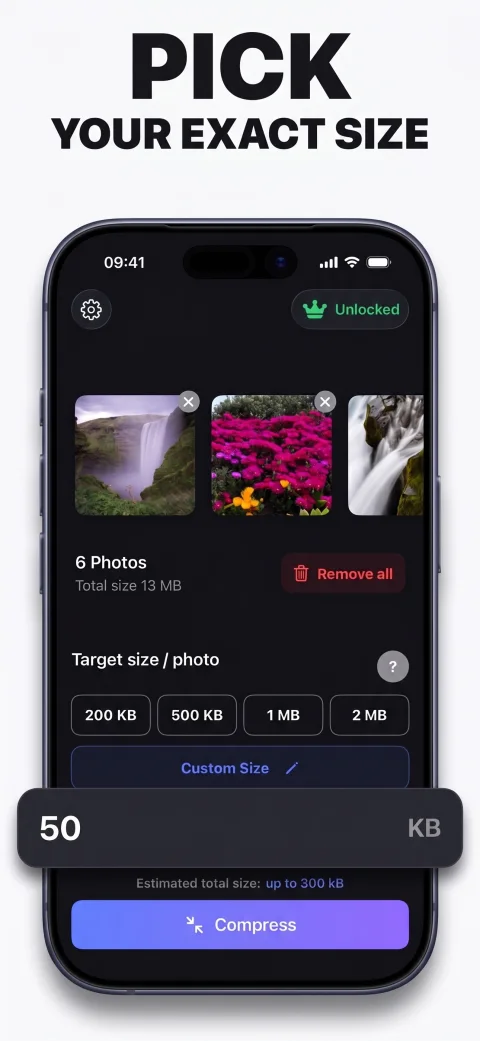
- Tap 200 KB, then Compress. Shrink adjusts compression and, when necessary, dimensions for this maximum per photo.
- Inspect the exported result. Zoom in on names, reference numbers, facial detail, or other information the recipient needs. Check any minimum dimensions separately.
- Save in Photos or Share. Return to the form and select the exported copy. A result smaller than 200 KB is expected: this setting is a maximum rather than an exact output size.
What if small text becomes hard to read?
Start with a sharper, well-lit source and remove irrelevant margins only when the form permits it. A large document containing tiny text is harder to fit into 200 KB than a simple portrait. Shrink cannot recover information that was blurred in the original.
If the compressed result no longer meets readability or pixel requirements, do not submit it blindly. Check whether the portal accepts another document format or offers a different submission method. Use the 500 KB workflow only when the destination actually allows a larger limit.
The file is small enough but the form rejects it
Confirm that you picked the new output, not the original. Then check the extension, dimensions, aspect ratio, minimum size, and the portal’s exact error message. JPEG output from recompression does not automatically solve every upload rule.
For a portal that requires a file strictly below the displayed threshold, a slightly lower Custom Size can leave a margin. Always judge the final exported file and the destination’s own validation. See the upload troubleshooting checklist for format and selection issues.
Remember: 200 KB applies to each photo. A batch of ten photos does not become a single 200 KB upload.