To make photos smaller for email, choose a per-photo size in Shrink, compress the selection, then use Share to pass the results to your mail app. Check the total attachment size, not only each individual photo.
Plan for the whole message
Your email provider and the recipient’s provider may have different limits. Read the restriction in the error message or provider documentation. Avoid assuming there is one universal maximum for all email services.
Divide the available attachment budget across the photos and leave room for other files and message encoding. For example, six photos at a 500 KB maximum account for up to 3 MB of photo data before email overhead. That example is a planning calculation, not a guarantee that a particular provider will accept the message.
Compress and attach the right files
- Choose photos in Shrink. Select up to 20 images that you want to send.
- Set a per-photo target. Use 500 KB for a smaller budget or 1 MB when the message has more room. Your recipient’s needs and provider limit should drive that choice.
- Tap Compress and inspect. Check that the result is clear enough for the purpose, especially receipts, reference numbers, or other small text.
- Use Share and select your mail app. Alternatively, save the results to Photos and attach those copies from the Shrink album.
- Review the message before sending. Confirm the attachment count and total size shown by your mail app. Remove original copies if they were attached earlier.
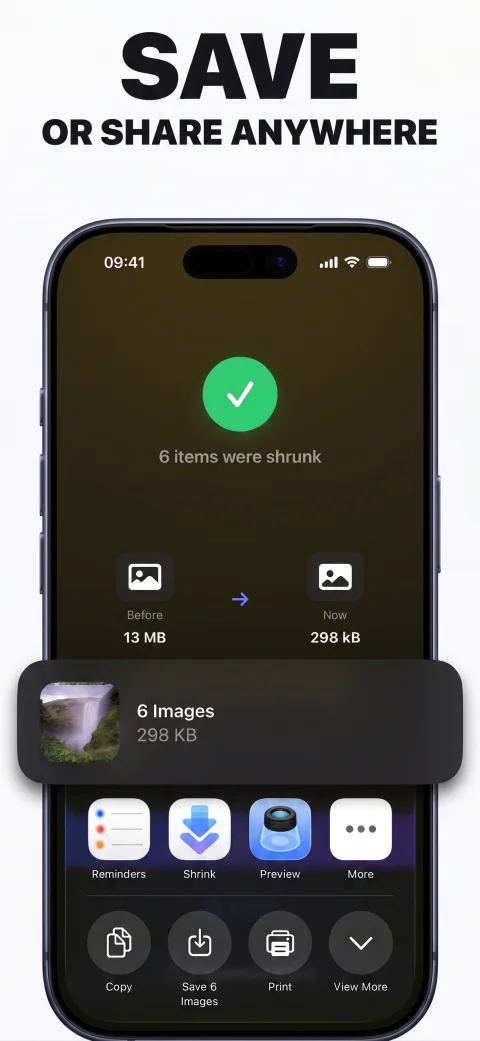
Choose size around what the recipient needs
For a quick visual reference, a smaller attachment may be enough. If the recipient needs to zoom into fine detail, print the photo, or edit it, an aggressively compressed copy may not be suitable.
Keep the original available. When original quality is necessary, a file-sharing link can be more appropriate than shrinking the image further. Ask which delivery method the recipient accepts if the requirements are unclear.
When Mail Drop is a better fit
Apple’s Mail Drop can send large attachments through a download link rather than making the photo itself smaller. Apple documents support for attachments up to 5 GB, subject to its service limits. It requires a connection and is different from Shrink’s on-device compression. See Apple’s Mail Drop limits.
Use compression when you need a smaller actual photo file. Consider a supported transfer method when the original matters more than attachment size. A link generally will not solve a web form that specifically requires a small uploaded image.
The email still bounces
Read the returned error and check whether the issue is attachment size or something else. Reduce the photo budget, split the message when appropriate, or use an accepted transfer link. Recheck that you are sending compressed exports rather than the original camera files.
For several images, the batch guide explains how one target applies to every selected photo. Shrink’s free download includes three exports; unlimited use is a one-time unlock.