To reduce a photo’s file size on iPhone, select it in Shrink, choose a maximum size, tap Compress, then save or share the result. Shrink handles the quality and dimension changes needed for the selected target.
File size and image dimensions are different
A limit written in KB or MB is about how much data the file contains. A requirement such as 1200 × 800 pixels is about the image’s dimensions. Reducing dimensions can reduce file size, but those two requirements are not interchangeable.
Shrink is designed for the first problem: making a photo fit a chosen maximum file size. If a form also specifies an aspect ratio or exact pixel dimensions, prepare those separately and check them again after compression.
Reduce your photo size with Shrink
- Check the destination’s limit. Read whether it applies to each image or the total upload. Note any accepted formats and minimum dimensions.
- Select the photo in Shrink. Choose one image, or up to 20 if they need the same per-photo limit.
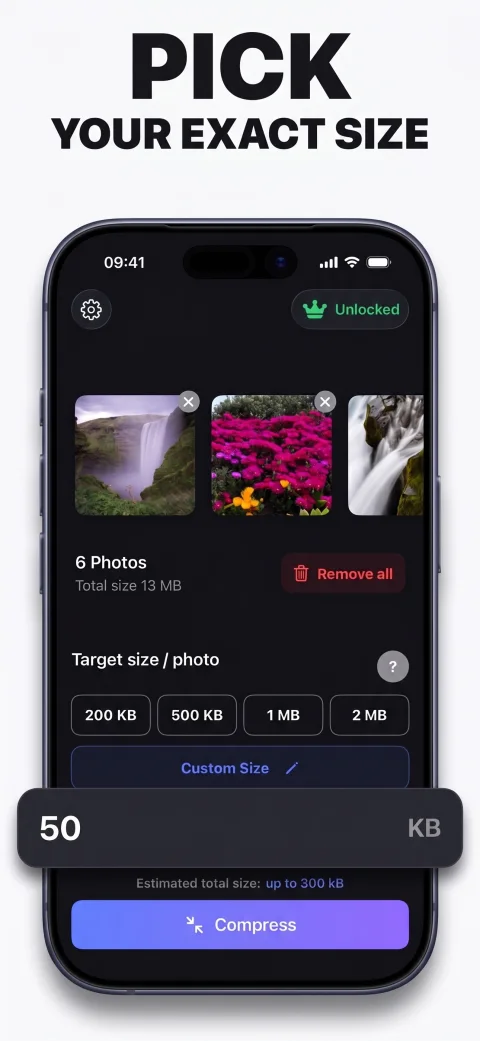
- Choose a maximum size. Use 200 KB, 500 KB, 1 MB, 2 MB, or Custom Size. The goal is to stay under a ceiling, not produce a file with an identical byte count.
- Tap Compress and review. Check the before-and-after sizes, then inspect the image itself. Read small text and look at important details.
- Save or share the output. Use Save in Photos for the Shrink album, or Share for another app. Upload the newly exported result rather than the original.
Check a photo’s file size on iPhone
In Photos, open the image and swipe up or tap the Info button. Apple’s photo information view includes file size and other metadata. Check the exported copy, because the original still has its original size. Apple’s guide to photo information explains this view.
Does making a photo smaller reduce quality?
It can. JPEG compression trades some image information for a smaller file, and Shrink may also reduce dimensions to meet a tight limit. There is no honest promise that every image can become dramatically smaller with zero quality loss.
Use the largest file limit the destination accepts. Compare text, faces, and detailed areas before sending. A photo already below your chosen target is left unchanged, so it is not compressed again unnecessarily.
Can I compress photos without uploading them?
Yes. Shrink processes photos on your iPhone and does not upload them for compression. The compression step works offline for images available locally. An original stored only in iCloud may first need to download; installing the app, purchasing, or restoring access can also need a connection.
No Shrink account is required. Apple and RevenueCat handle purchase-related information as described in the privacy policy; local photo processing is not a claim that every app operation is offline.
Is Shrink free?
The app is free to download and includes three free exports. A one-time purchase unlocks unlimited compression. There is no recurring subscription. Check the App Store in your region for the current unlock price; Shrink requires iOS 26 or later.